 Rebound
Every WordPress site deserves to bounce back.
Rebound backs up WordPress sites to a folder, your NAS or the cloud, restores or migrates them to any site in minutes, and lets you query and report on their databases — live or from a backup.
For Windows, macOS and Linux. Every feature is unlocked for 7 days, and no card is needed.
Try a route
Where do you start?
What do you want to do on the source site?
What do you want to do on the target site?
What do you want to do in the Rebound client?
A site to site copy always uses the Rebound plugin on both sites. The second one can be installed for you.
Which shared folder?
Which zip?
Without the Rebound client a zip is the way to go: download it on the source site, upload it here.
How do you want to watch it?
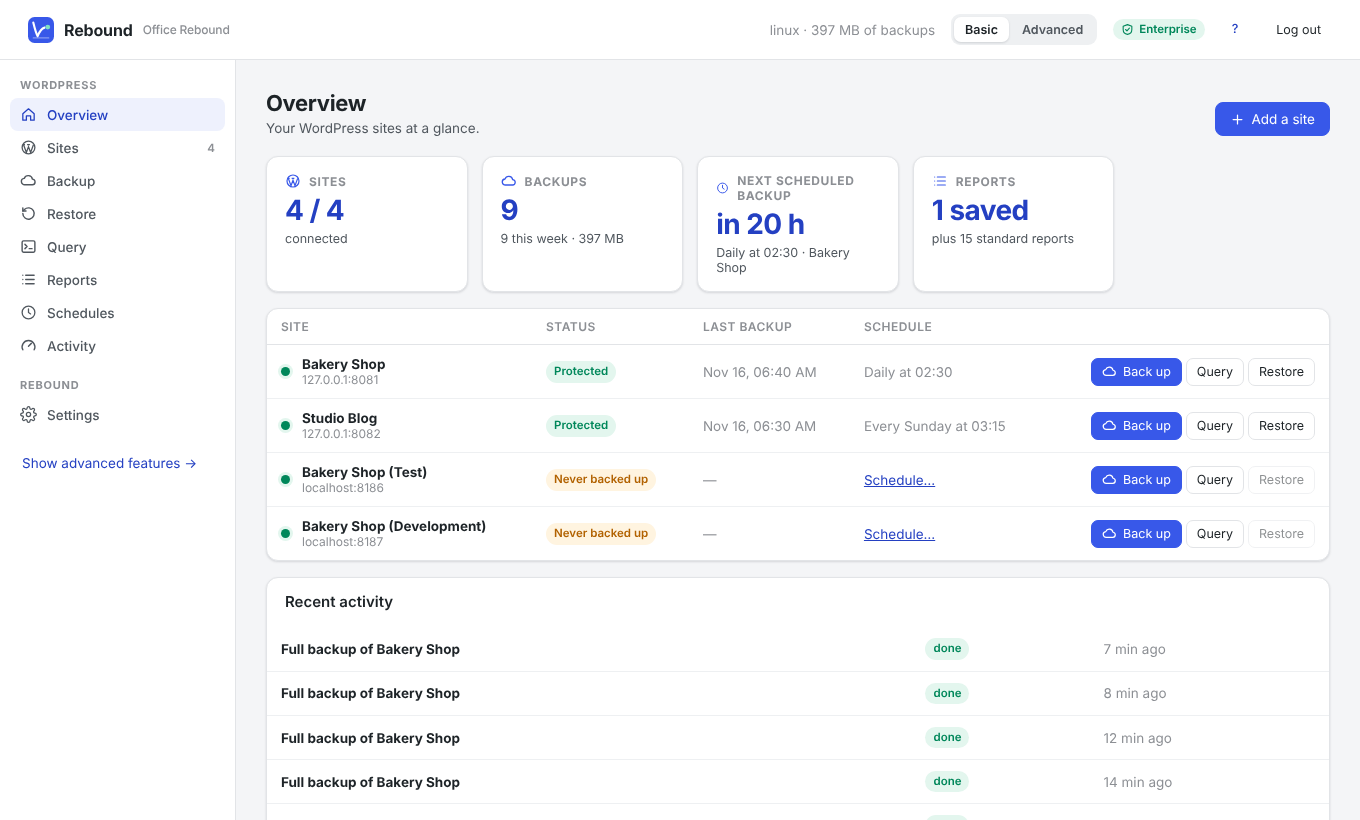
One route for everything you do with a site's data
Each step uses the same connection to the site, so a backup, a query and a restore never get in each other's way.
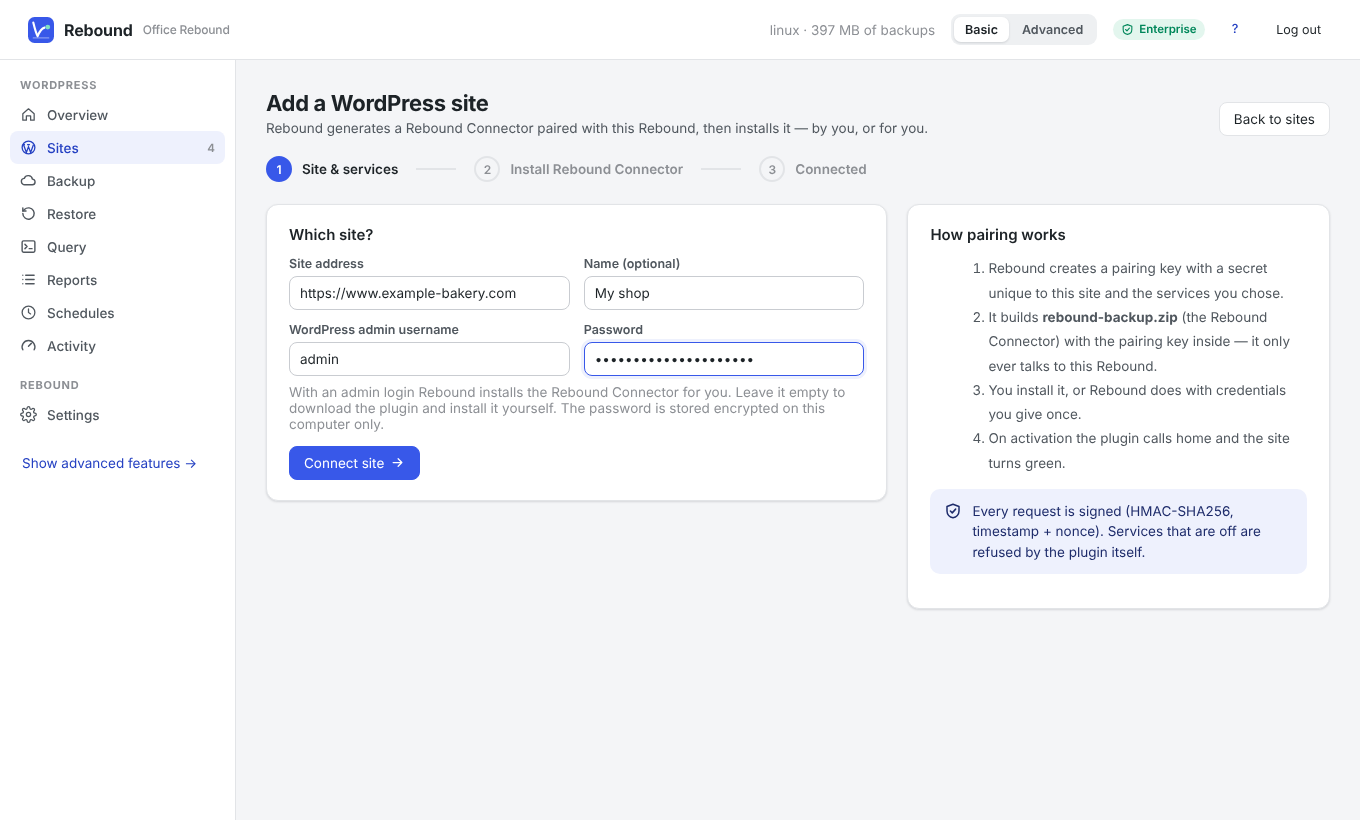
Connect a site
Enter the site address and an administrator login. Rebound installs its Rebound plugin, checks that it answers, and the site turns green. Prefer to do it yourself? Download the plugin and upload it in WordPress.
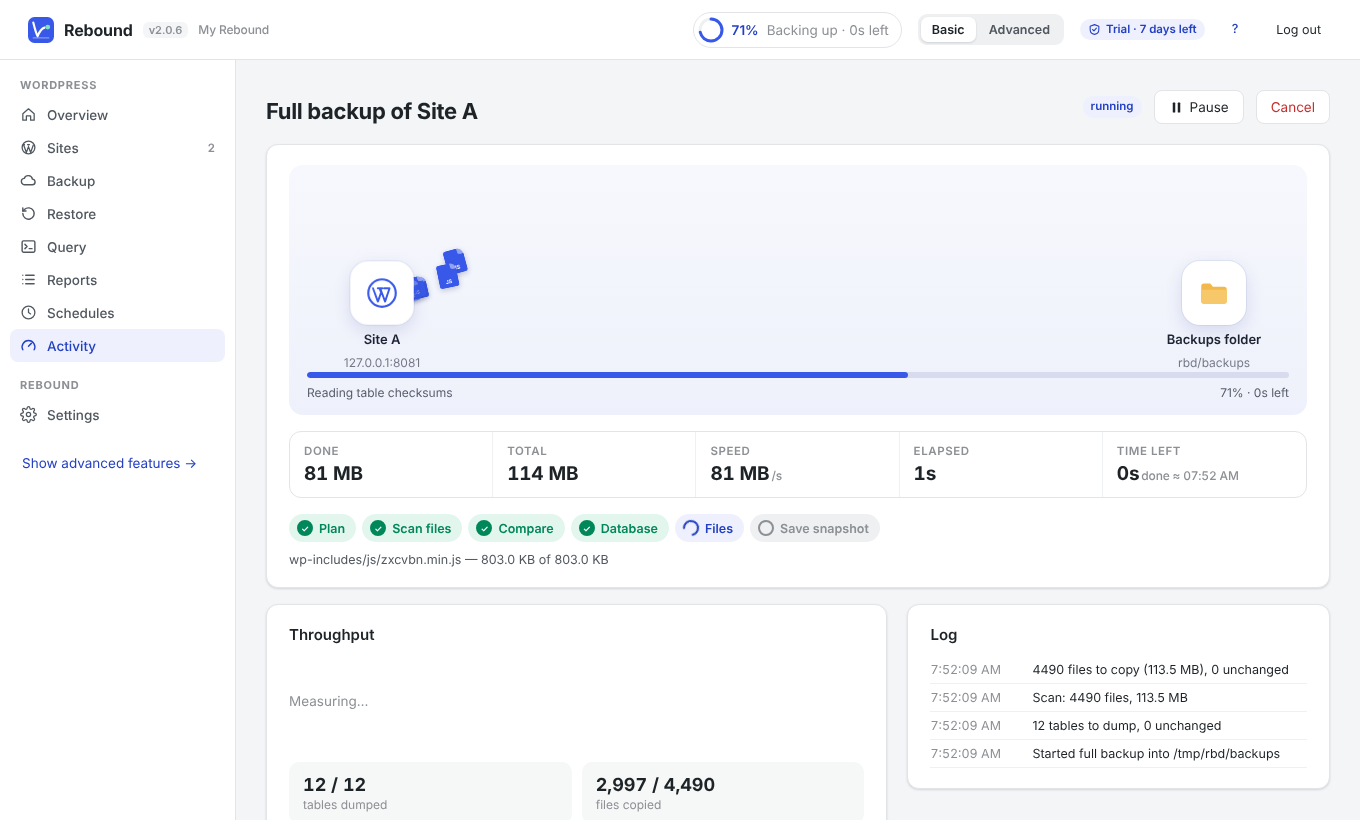
Back it up — all of it, or just what matters
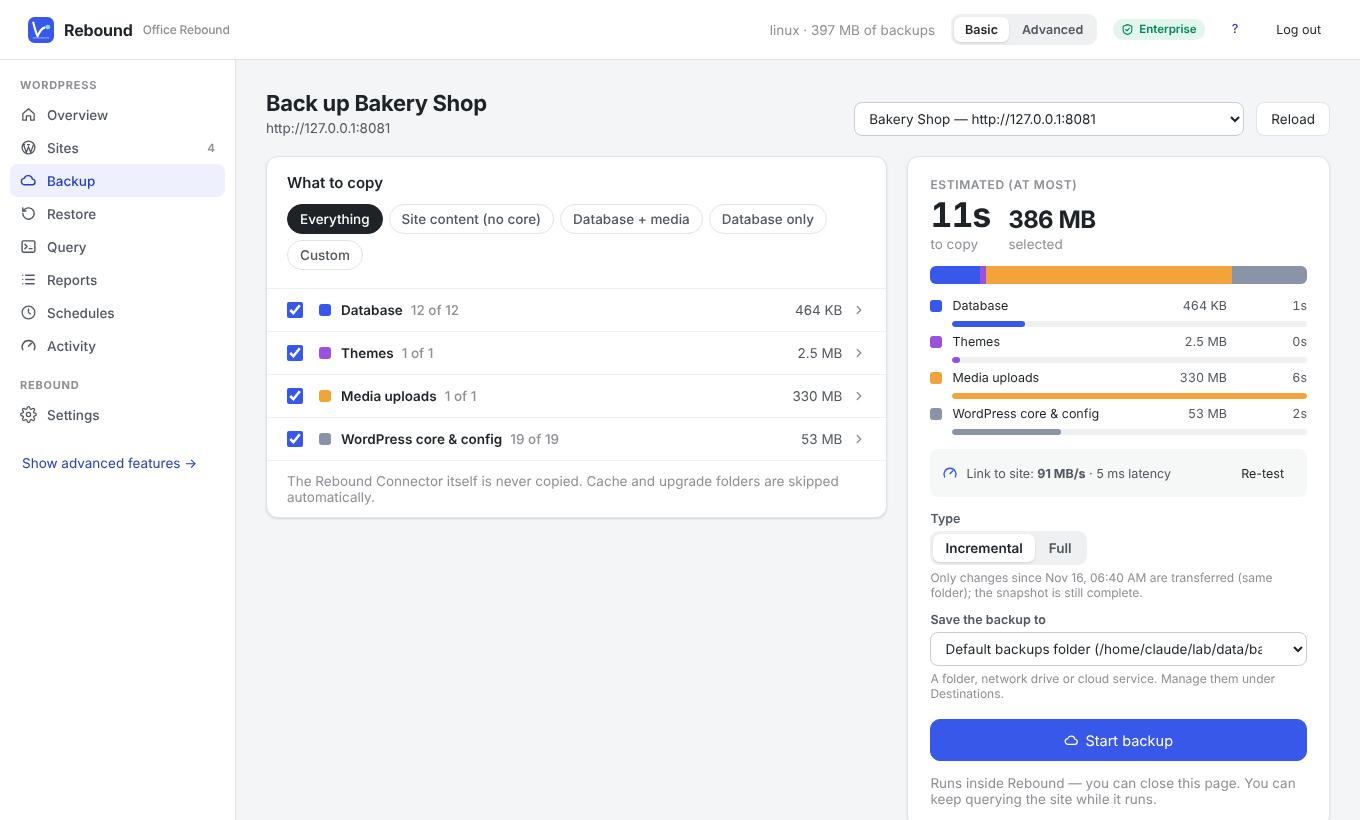
Tick tables, plugins, themes and media, or choose a preset. You see the size, the estimated time and then the live progress, speed and time left. After the first backup only changes are transferred.
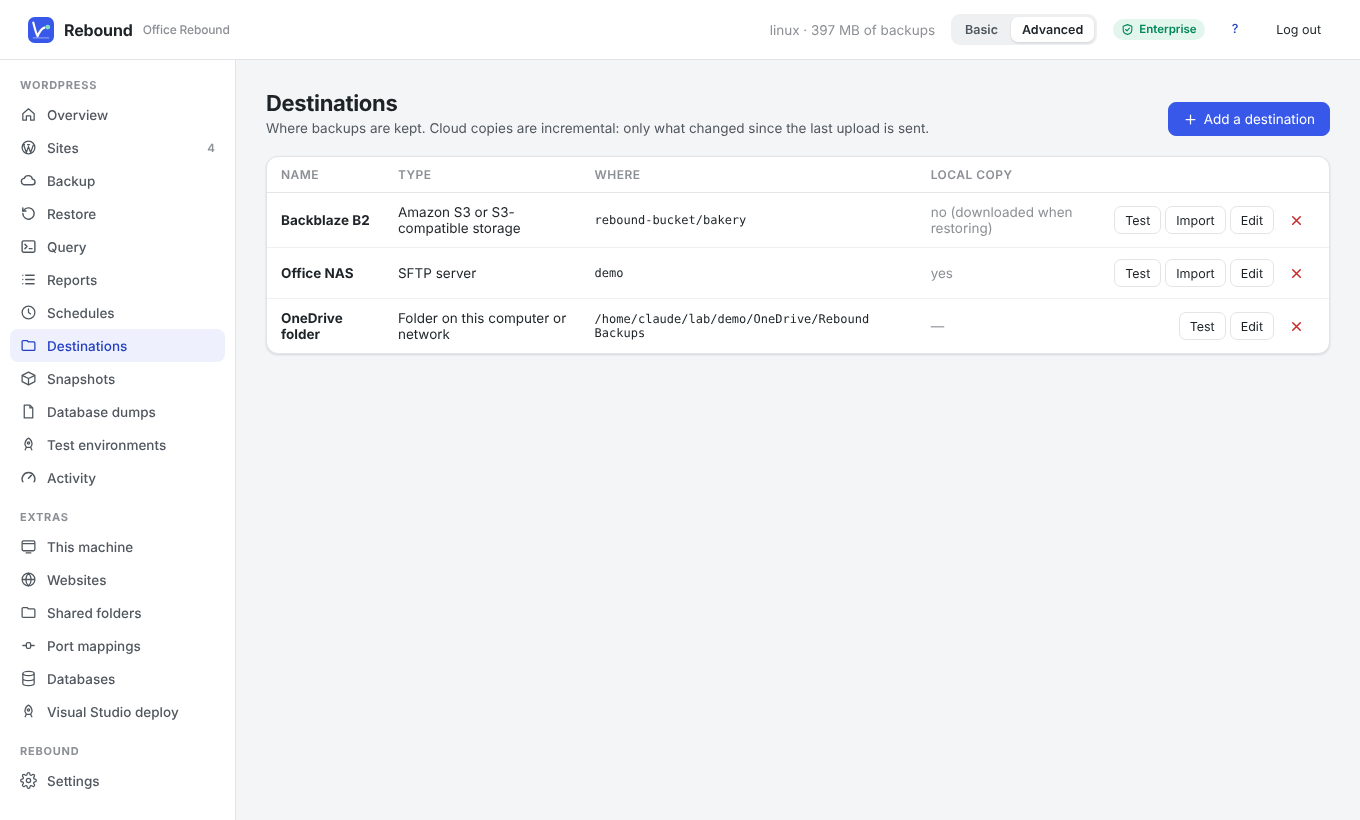
Keep it where you like
Every destination is tested with one click before you rely on it, and cloud copies are incremental too.
- Local folder
- Network drive
- OneDrive
- Google Drive
- Dropbox
- Amazon S3
- Backblaze B2
- Wasabi
- Cloudflare R2
- WebDAV / Nextcloud
- SFTP
- FTP / FTPS
- 70+ via rclone
Put it on a schedule
Daily, weekly or monthly at the time you choose. Before every run Rebound checks that the destination is reachable and has room; afterwards it keeps the newest backups and deletes the oldest, there and here.
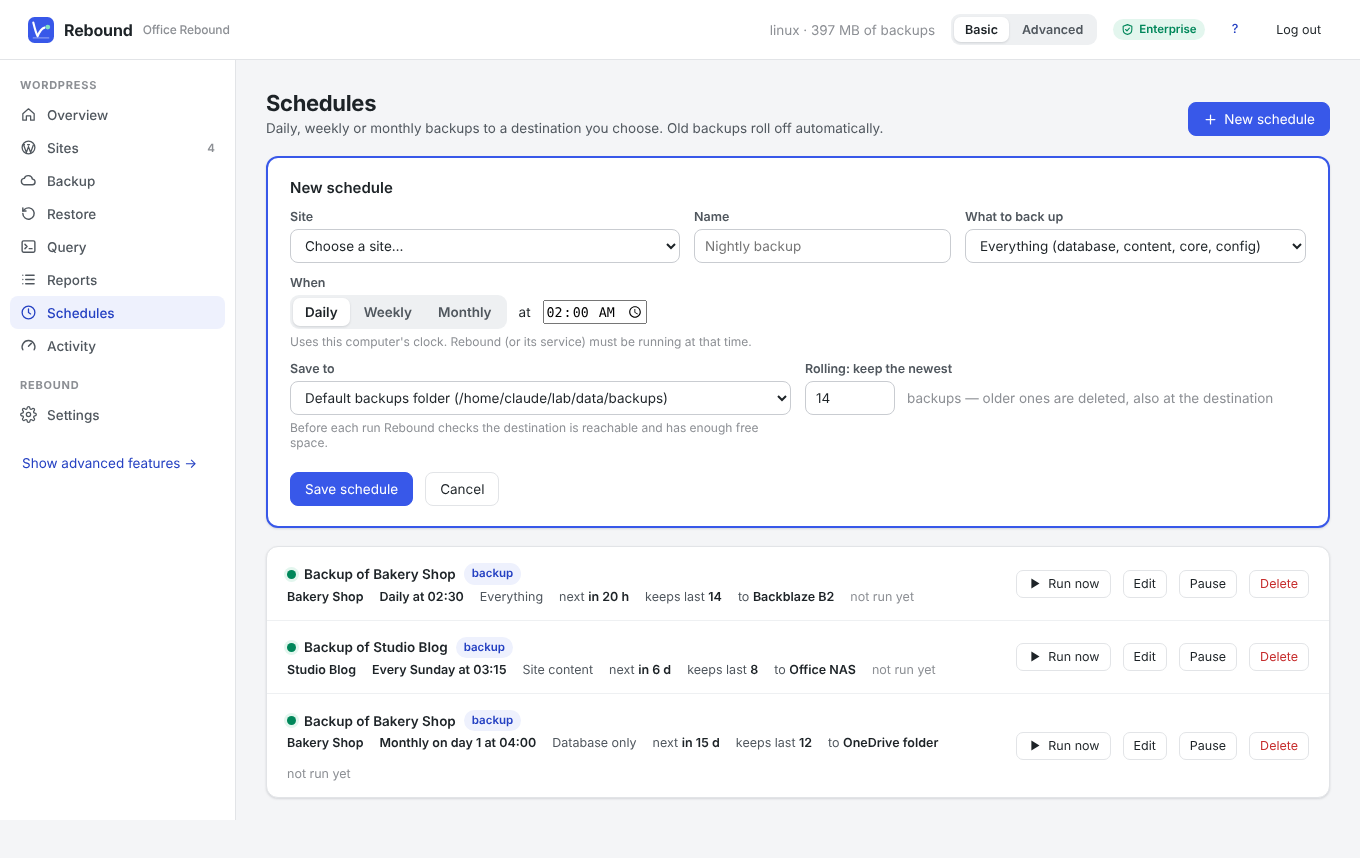
Restore to any site
Restore everything, or only some tables or plugins, to the same site or another one. Addresses are rewritten, the result is verified before it goes live, and one click rolls it back.
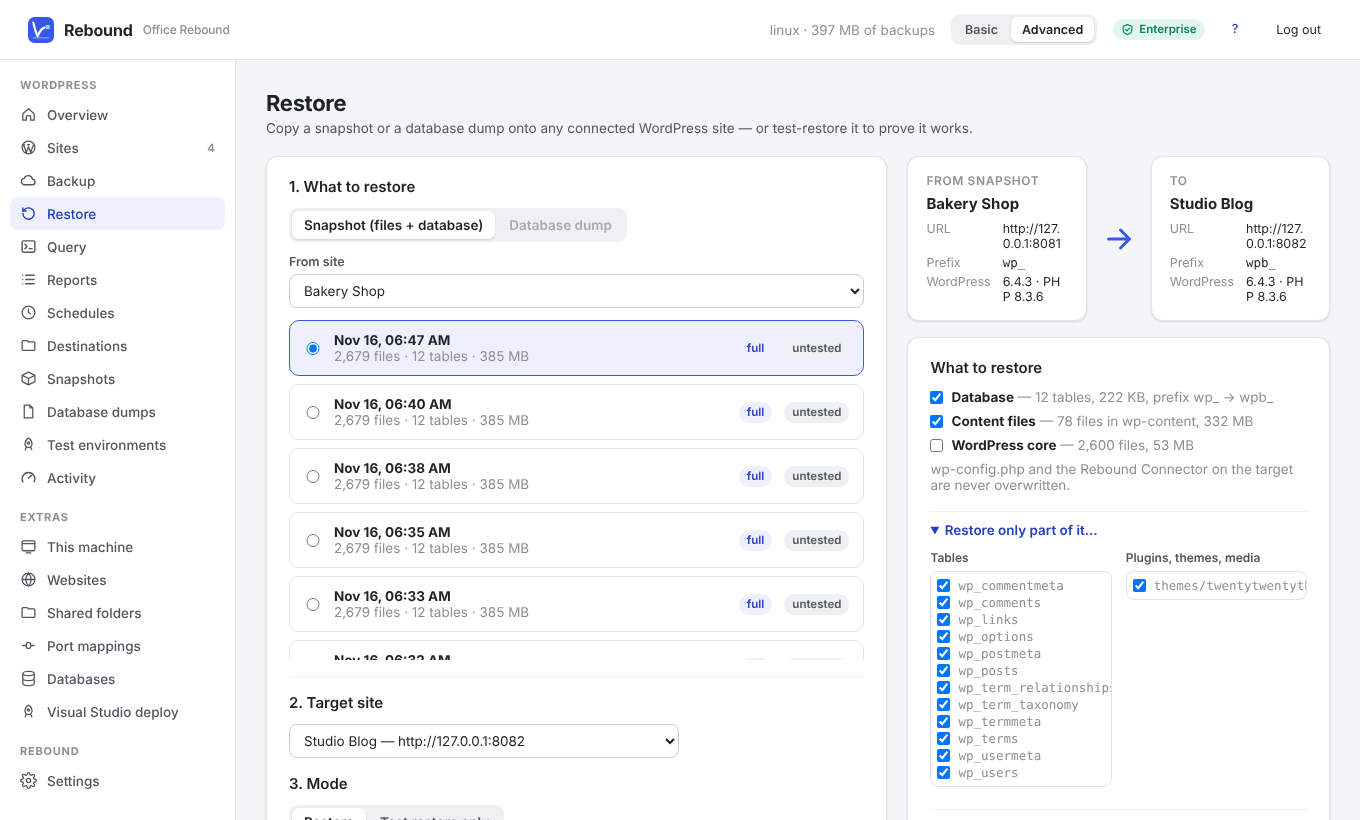
Ask the database questions
Run read-only SQL on the live site — also while it is being backed up — or on an offline copy of any backup. Fifteen standard reports cover content, users, comments, WooCommerce orders and site health; the report builder lets you combine tables without writing SQL.
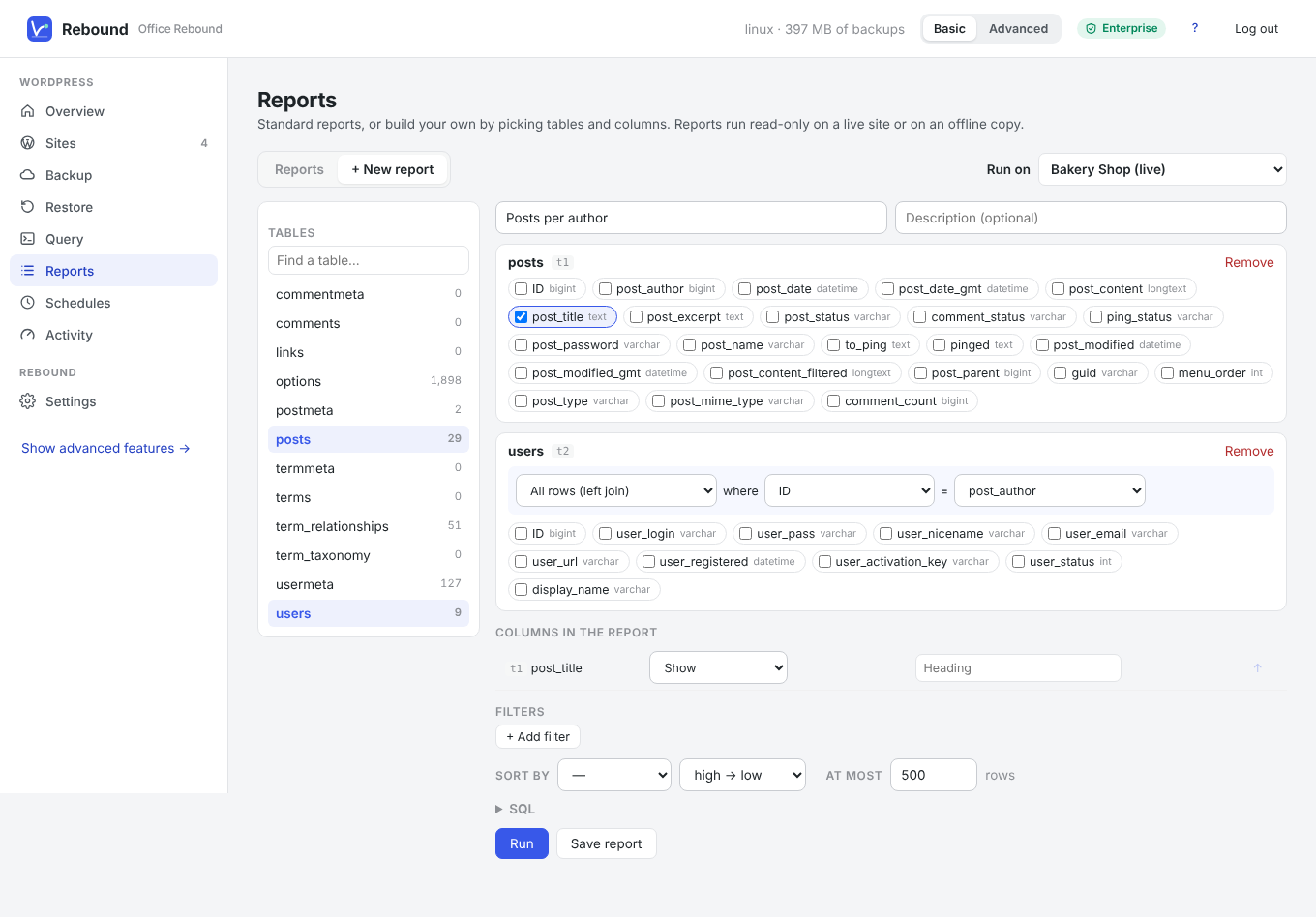
Try changes on a copy first
Spin up Development, Test and Acceptance copies of a site in Docker, restored from a backup with their addresses rewritten — then pass a tested backup on to the live site.
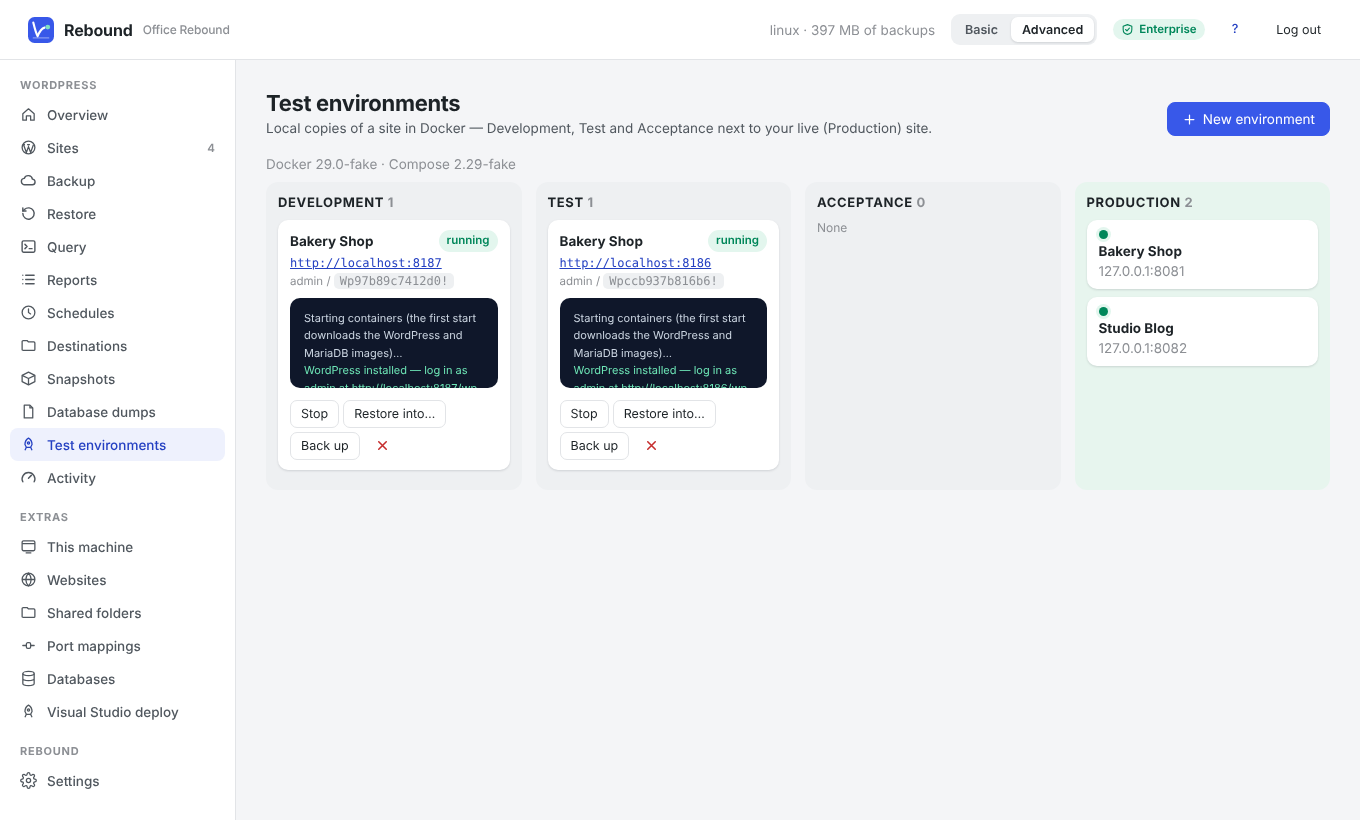
An app on your computer, a plugin on your site
Rebound client for Windows, macOS and Linux
Optional. Runs as a program that opens in your browser, or as a service with an icon in the system tray. It keeps the backups, runs the schedules and talks to all your sites. Nothing goes through our servers.
Rebound plugin for WordPress
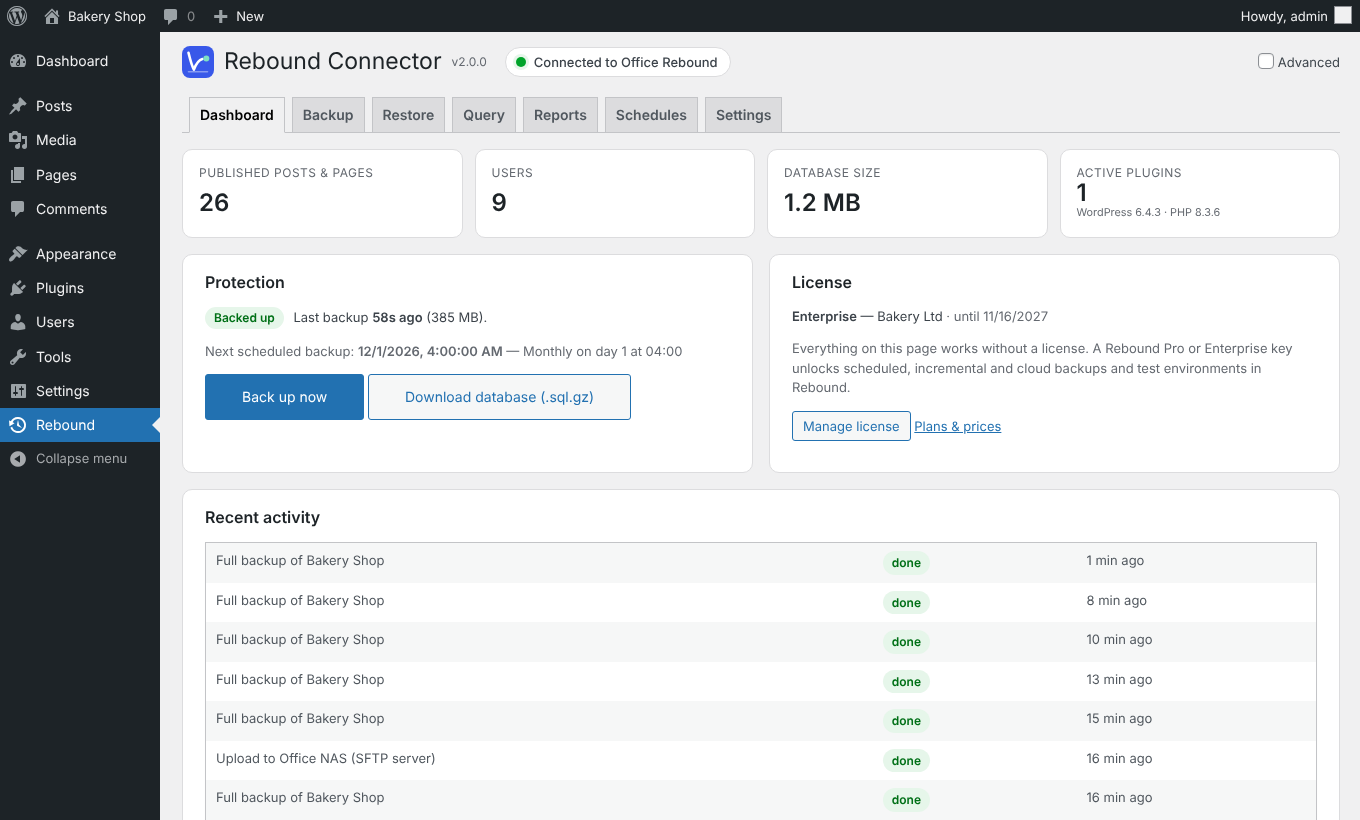
Adds a page to wp-admin with a dashboard, live query and reports that work on their own, plus backup, restore and schedules once the site is connected to the Rebound client. Every request between the two is signed and checked.
See it in two minutes
Every feature, free for 7 days
Download Rebound, connect a site and make your first backup. After the trial it keeps working as Free for one site — or choose Pro or Enterprise.