Rebound
 Rebound
The Rebound plugin in WordPress
The Rebound plugin adds a Rebound page to wp-admin. Several parts work on their own; the others work together with Rebound.
Applies to: Rebound plugin 2.0 · WordPress 5.6+ · PHP 7.4+
The plugin always has the same version number as the Rebound app it is paired with. When Rebound finds a connected site with an older plugin, it asks whether to update it (Update now or Later); the site card on Sites shows the plugin version with an update link. A copy installed from WordPress.org is updated through WordPress instead.
| Tab | Without Rebound | With Rebound |
|---|---|---|
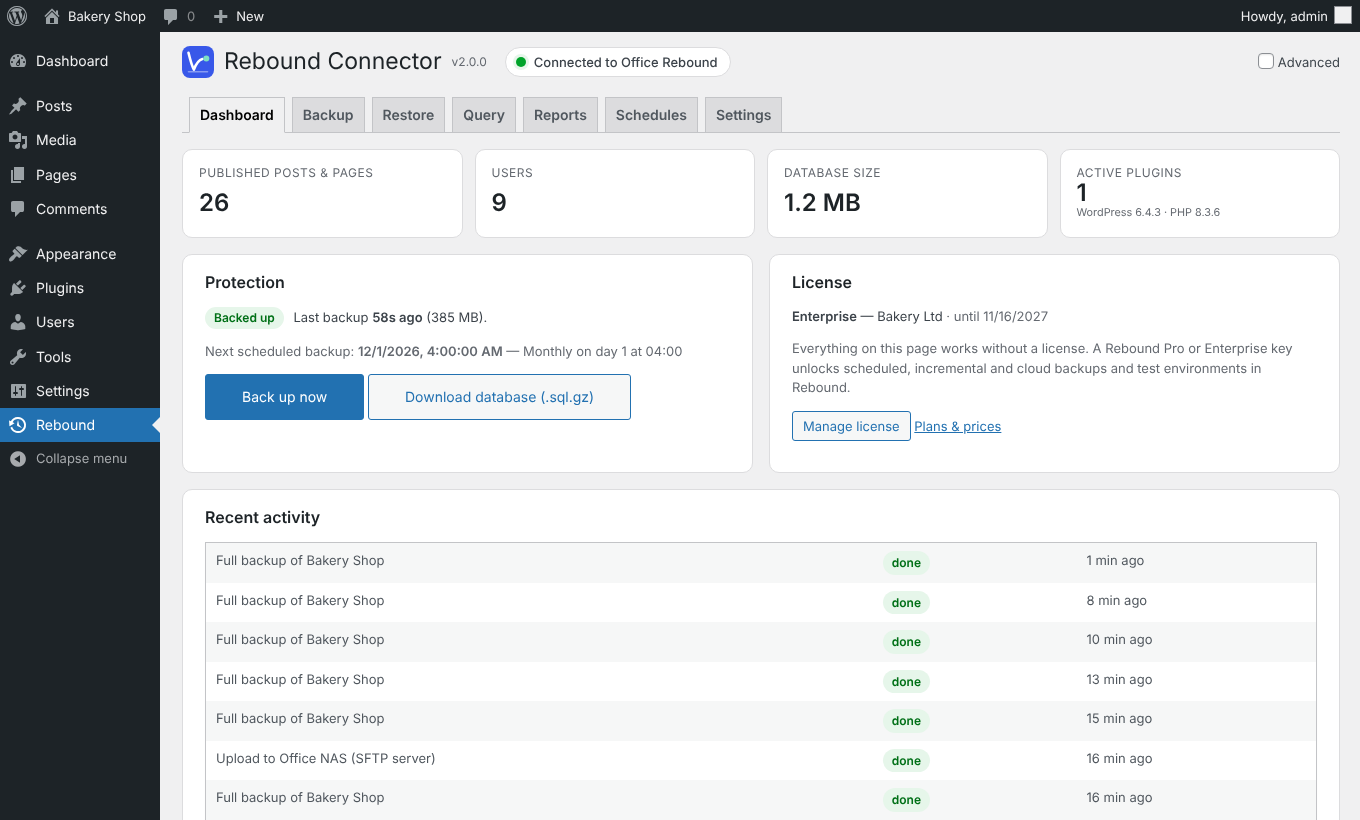
| Dashboard | Site facts, database export | Protection status, last backup, next scheduled backup, recent activity |
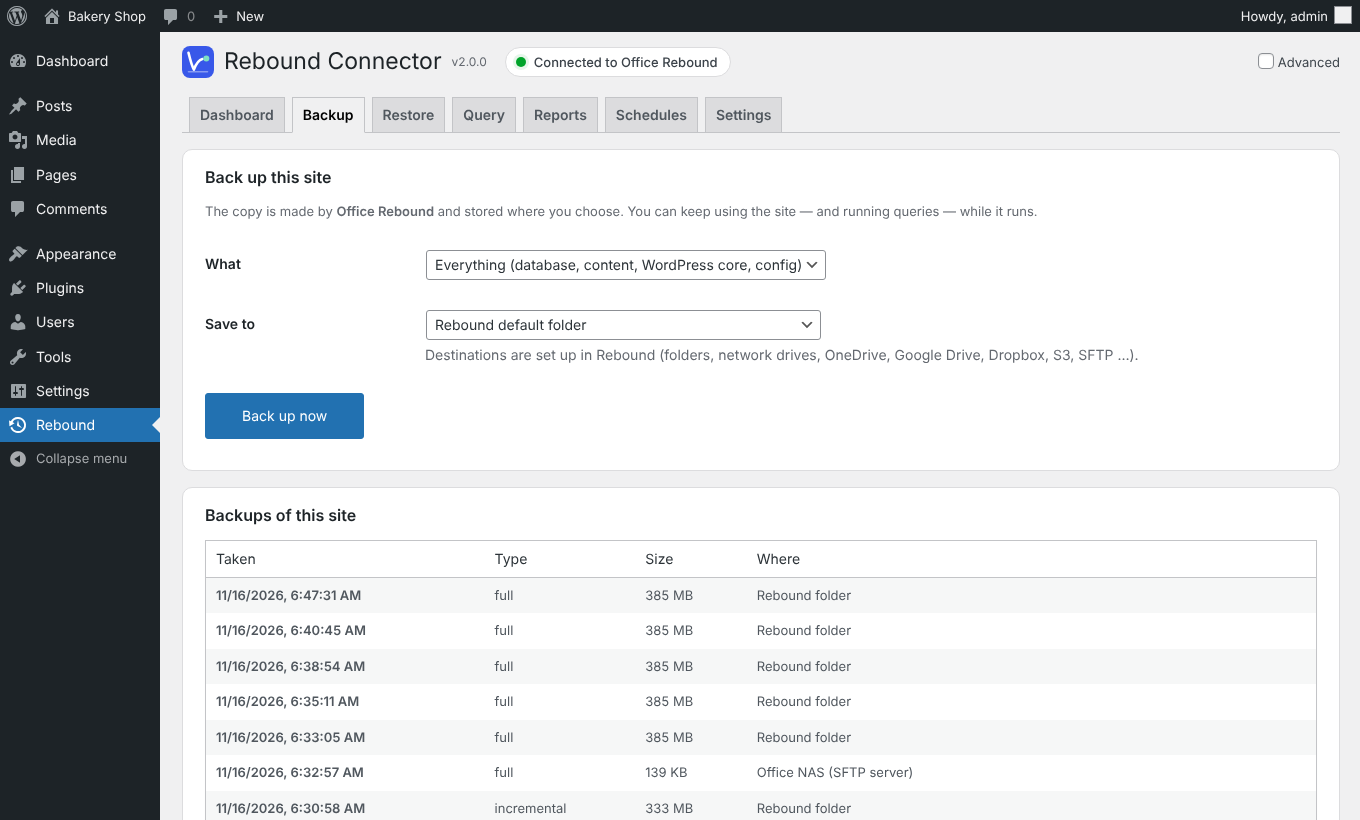
| Backup | Back up to a zip file (all or part) and download it; database export (.sql.gz) | Back up now to any Rebound destination, with live progress — plus the zip file |
| Restore | Restore a zip file from your computer or the server, all or part, with undo | Restore this site's own backups, test restores, keep or roll back — plus zip files |
| Query | Read-only SQL on this site | the same |
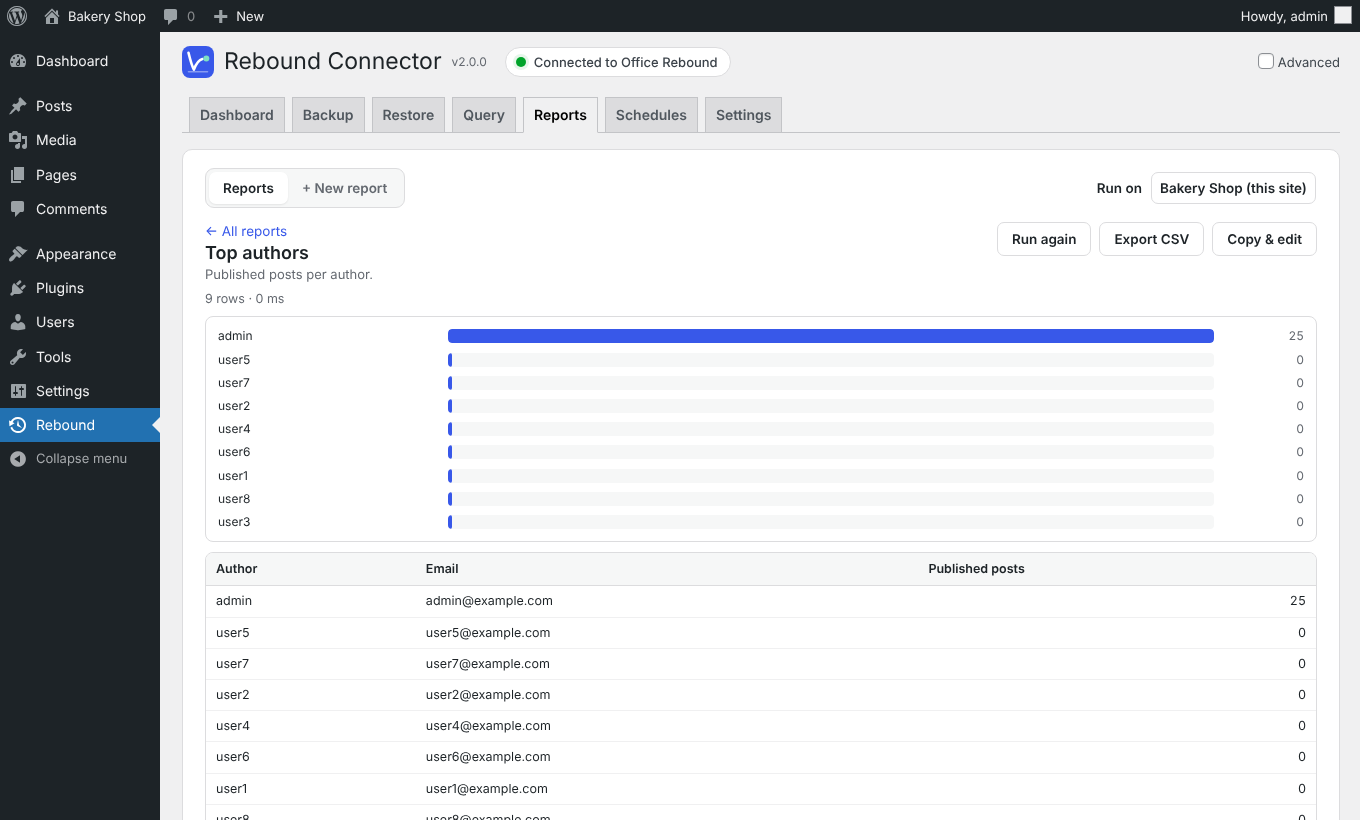
| Reports | Standard reports and the report builder | the same |
| Schedules | — | Create, edit, run and delete this site's schedules |
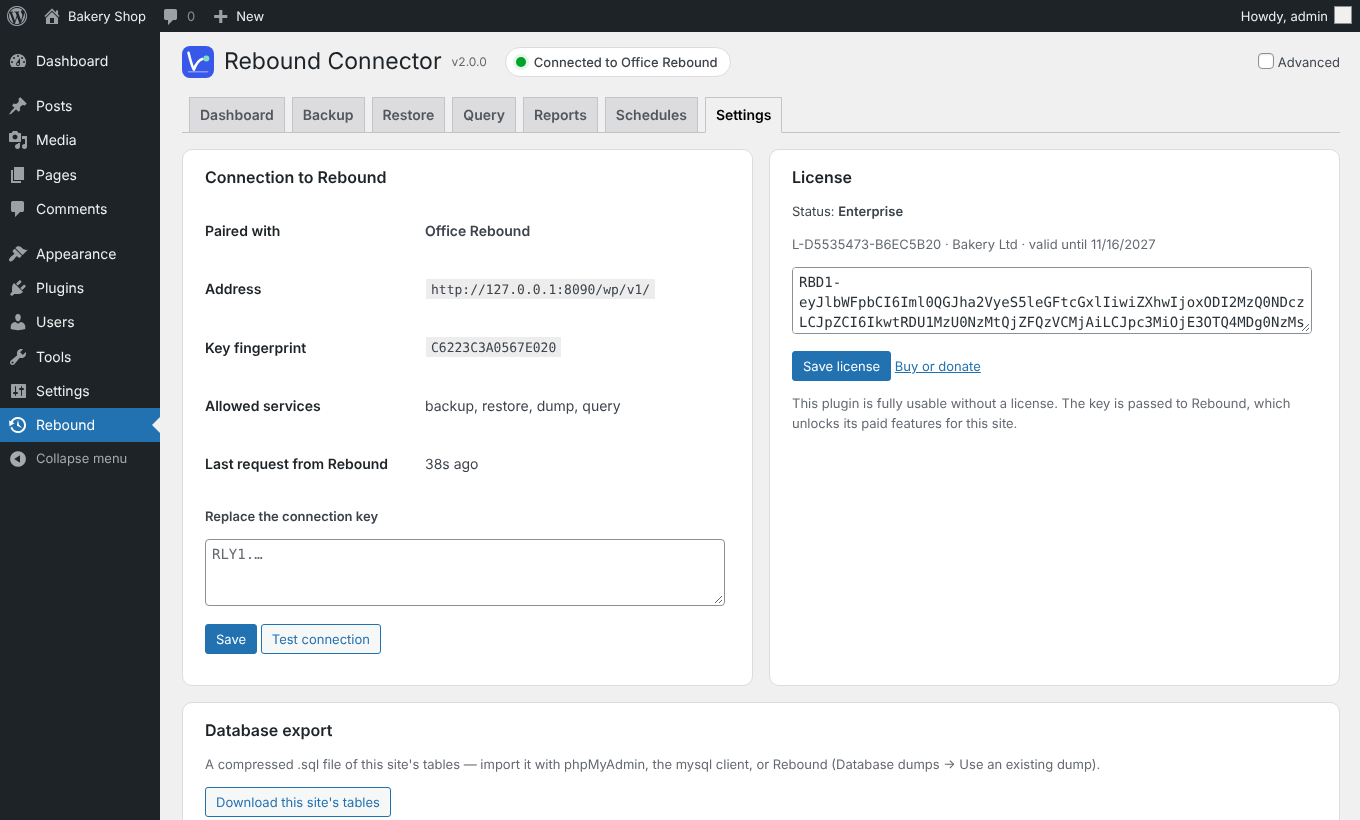
| Settings | License key, database export | Connection to Rebound, license key |
Permissions
Only users with the manage_options capability (administrators) can open the page. Every request is checked with a WordPress nonce. Calls between the plugin and Rebound are signed with the site's secret.
License keys in WordPress
Enter a Rebound license key under Settings → License. The plugin itself never locks a feature; the key is passed to Rebound, which then unlocks its Pro or Enterprise features for this site.