 Rebound
 Rebound
Destinations: where backups are kept
A destination is a place where Rebound keeps backups. Backups to cloud and network destinations are uploaded incrementally: only what the destination does not have yet is sent.
Applies to: Rebound 2.0 · Advanced mode (Destinations) · cloud and network destinations need Rebound Pro
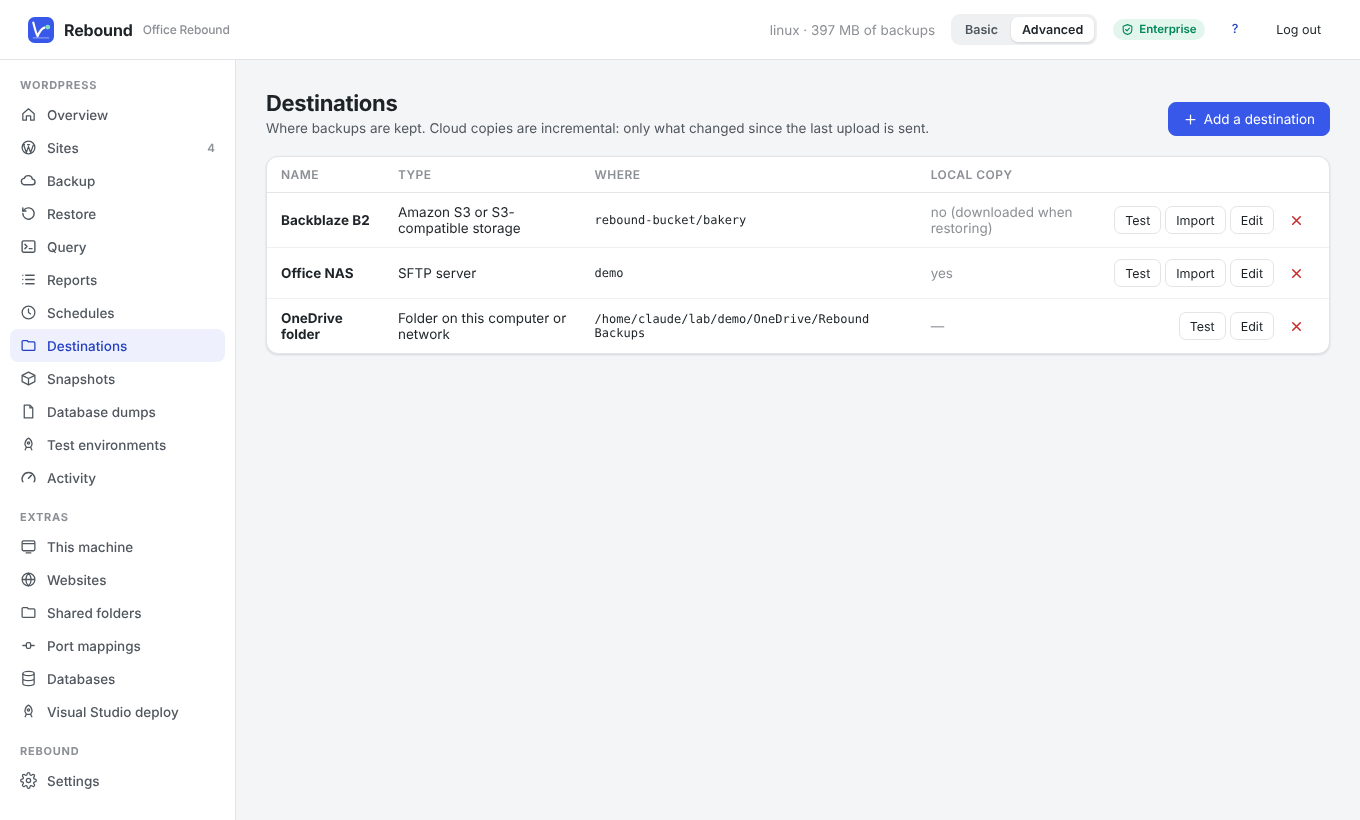
Kinds of destinations
| Destination | You need | Notes |
|---|---|---|
| Folder on this computer or network | A folder or a network path (\\nas\backups, /mnt/nas) |
Also works for the OneDrive, Dropbox, Google Drive and iCloud folders on your computer: their app uploads the files. Rebound offers the folders it finds with one click. |
| Microsoft OneDrive | An app ID (one-time, see below) and a Microsoft account | Files go to Apps/Rebound in your OneDrive |
| Google Drive | An OAuth client ID and secret (one-time) and a Google account | Rebound can only see the files it created |
| Dropbox | An app key (one-time) and a Dropbox account | Files go to Apps/Rebound |
| Amazon S3 / S3-compatible | Endpoint, region, bucket, access key, secret key | Works with AWS, Backblaze B2, Wasabi, Cloudflare R2, MinIO and others |
| WebDAV | Address, user name, password | Nextcloud, ownCloud, Box, many NAS boxes |
| SFTP | Host, port, user, password or private key, folder | Any SSH server or NAS |
| FTP / FTPS | Host, port, user, password, folder | Tick FTPS for encrypted transfers |
| rclone remote | rclone installed and a configured remote | Any of rclone's 70+ storage systems |
To add a destination
- Choose Destinations → Add a destination (or + Add a destination… in any destination list).
- Pick the kind and fill in only the fields shown.
- Click Save & test. Rebound writes, lists, reads back and deletes a small test file and reports the free space.
- For OneDrive, Google Drive and Dropbox, click Connect account and approve access in the browser window that opens.
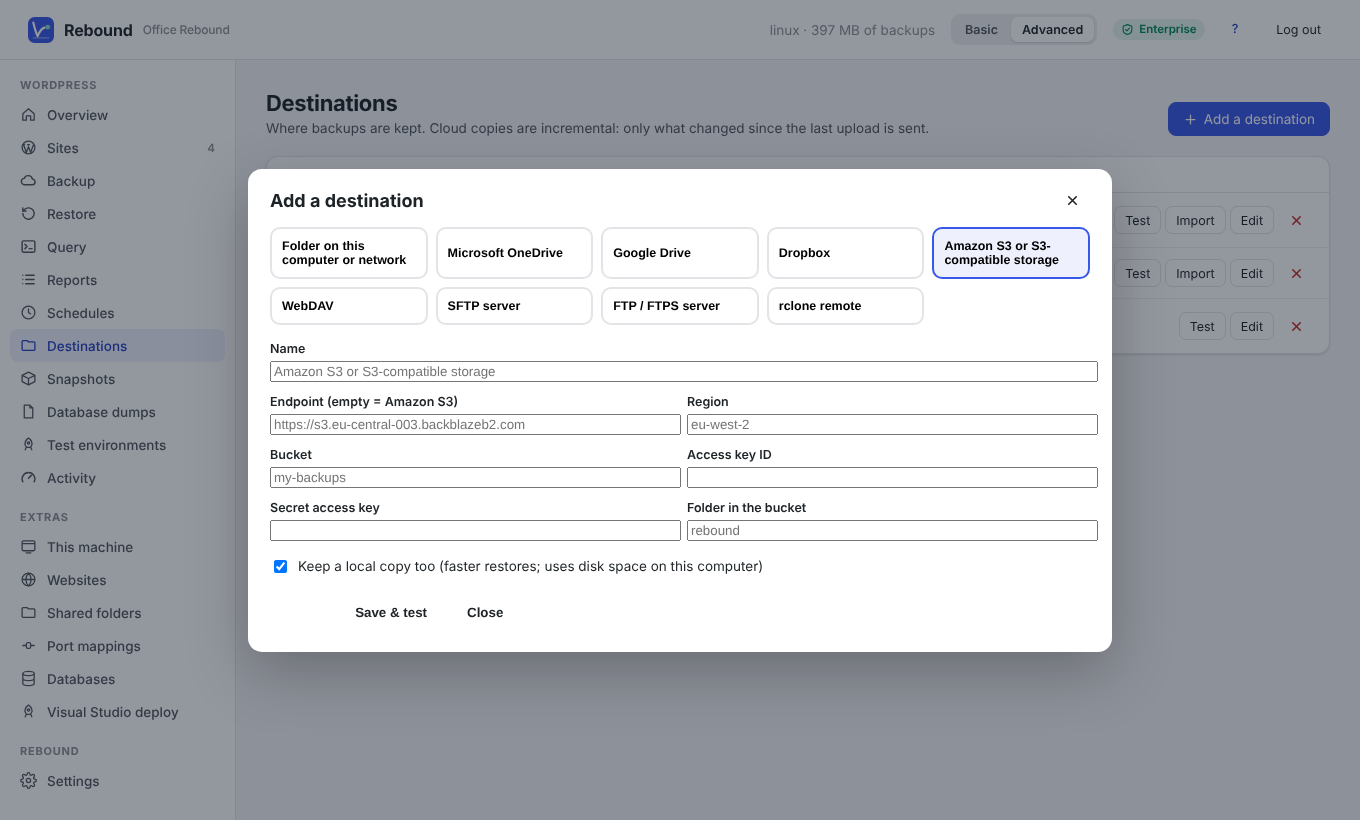
Keep a local copy too keeps the backup in Rebound's data folder as well, which makes restores faster. Without it, Rebound downloads what a restore needs from the destination.
One-time app registration for OneDrive, Google Drive and Dropbox
These services only let registered apps in. Register once and enter the IDs under Settings → Cloud accounts (Advanced mode):
- OneDrive: Azure portal → App registrations → New registration, account type Personal Microsoft accounts, platform Mobile and desktop applications, enable Allow public client flows. Add the delegated permission
Files.ReadWrite.AppFolder. Copy the Application (client) ID. - Google Drive: Google Cloud console → APIs & Services → enable the Google Drive API → Credentials → Create OAuth client ID, type TVs and Limited Input devices. Copy the client ID and secret.
- Dropbox: Dropbox App Console → Create app, Scoped access, App folder. On Permissions tick
files.content.writeandfiles.content.read. Copy the App key.
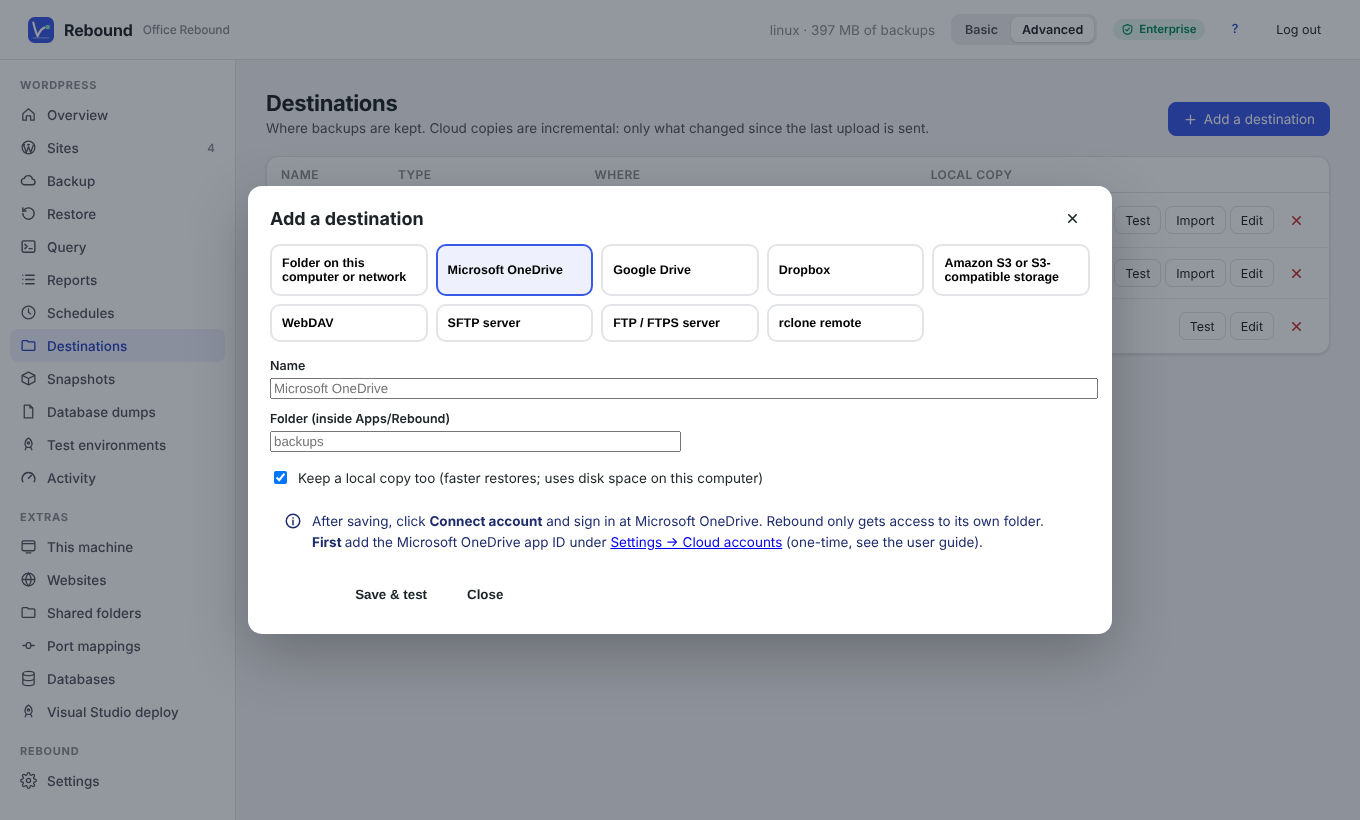
Tip No time for app registrations? Choose Folder on this computer and pick your OneDrive, Dropbox or Google Drive folder. The provider's own app uploads the backups.
Snapshots found at a destination
Import reads a destination and adds the backups it holds to the list — for example after reinstalling Rebound or on a second computer.