 Rebound
 Rebound
 and Rebound plugin overview
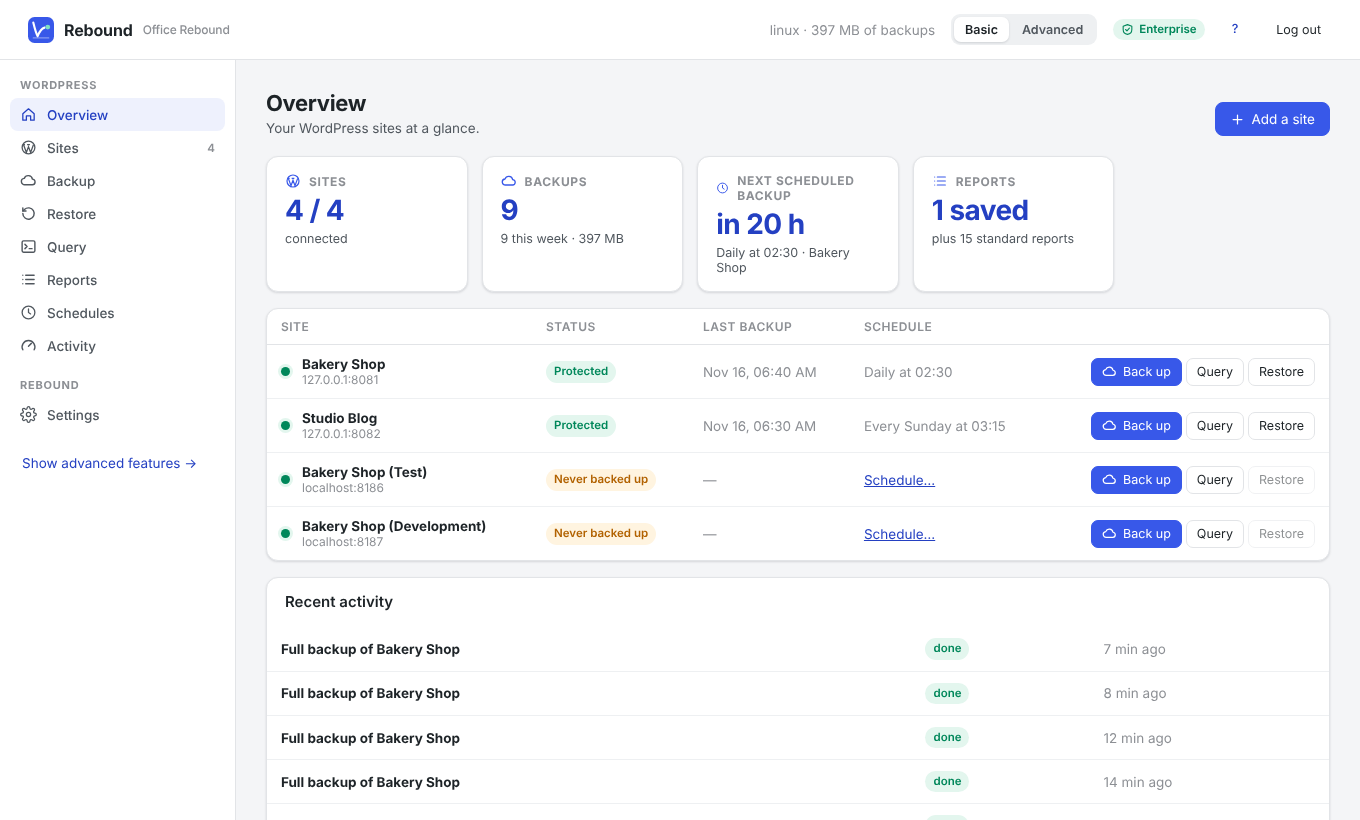
Rebound is a program for Windows, macOS and Linux that backs up, restores, queries and reports on WordPress sites. The Rebound plugin is its companion plugin inside WordPress. Together they let you copy a complete site, or just the parts you choose, to a folder, a network drive or a cloud service, and bring it back to any WordPress site.
Applies to: Rebound 2.0 · Rebound plugin 2.0
How the parts fit together
| Part | Where it runs | What it does |
|---|---|---|
| Rebound | Your computer or a server (Windows, macOS, Linux) | Stores backups, runs schedules, holds the destinations, shows the Rebound page in your browser |
| Rebound plugin | Inside each WordPress site | Reads and writes the site's files and database on Rebound's behalf, and has its own page in wp-admin |
| Rebound page | Your web browser | Where you configure everything — Rebound opens it for you |
Rebound and the Rebound plugin talk over a WebSocket connection that the plugin opens back to Rebound. If the site cannot open one (strict hosting), signed HTTPS calls are used instead. Every request is signed with a secret that is unique to the site, carries a time stamp and a one-time number, and is refused if any of these is wrong.
What you can do
- Back up a whole site or selected tables, plugins, themes and media, with live progress, transfer speed and time left.
- Keep backups where you like: a local folder, a network drive, OneDrive, Google Drive, Dropbox, Amazon S3 and S3-compatible storage, WebDAV, SFTP, FTP — or any of rclone's 70+ services.
- Schedule backups daily, weekly or monthly, with rolling retention so the disk never fills up.
- Restore all or part of a backup to the same site or another site, with automatic address rewriting and a rollback point.
- Query a live database (read-only) — even while a backup is running — or an offline copy of a backup.
- Report with 15 standard reports, or build your own by picking tables and columns.
- Test with local Docker copies of a site (Development, Test, Acceptance).
Note The interface has a Basic and an Advanced mode. Basic shows what you need day to day; Advanced adds destinations, snapshots, dumps, test environments and partial restores. Switch at the top of the page.