Rebound
 Rebound
Backup and restore routes
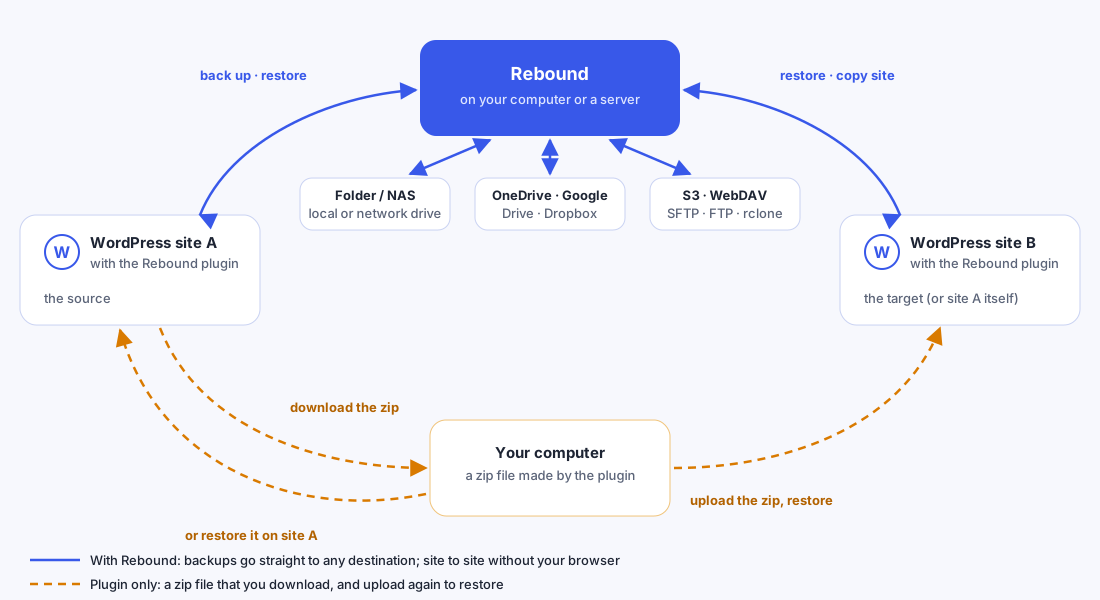
Rebound can copy a WordPress site to many places and back. Which routes you have depends on one thing: whether you use only the Rebound plugin in WordPress, or also the Rebound program on your computer or a server.
Applies to: Rebound 2.0 · Rebound plugin 2.0
The routes at a glance
| From → to | Plugin only | With Rebound |
|---|---|---|
| WordPress site → your computer | Yes — a zip file you download | Yes — straight into a folder on the Rebound computer |
| WordPress site → folder, NAS or network drive | — | Yes |
| WordPress site → OneDrive, Google Drive, Dropbox, S3, WebDAV, SFTP, FTP | — | Yes, incremental |
| WordPress site → another WordPress site | Yes — download the zip on one site, upload it on the other | Yes — Copy to another site, nothing passes through your browser |
| Your computer → WordPress site | Yes — upload a zip file made by the plugin | Yes — restore a backup from the Rebound folder |
| Folder or cloud storage → WordPress site | — | Yes |
| The same site, back to an earlier state | Yes — restore one of its zip files | Yes — restore one of its backups |
Without Rebound, the only way out of the site is a zip file that you download to your computer, and the only way in is a zip file that you choose on your computer (or one that is still on the server). Everything else — folders, network drives, cloud storage, schedules, incremental backups, site-to-site copies without your browser — needs Rebound.
What you can choose on every route
Every backup and every restore can be partial. You choose with a preset or tick items one by one:
| Preset | Contains |
|---|---|
| Everything | Database, plugins, themes, media, other wp-content, WordPress core and wp-config.php |
| Site content (no core) | Everything except the WordPress core files |
| Database + media | All tables and the media library |
| Database only | All tables |
When you restore, you can again untick tables, single plugins or themes, the media library or other folders. WordPress core files are off by default; wp-config.php is never restored, so the target keeps its own database settings.
The same safety on every route
- Tables are imported into temporary tables and files into a staging folder. The live site only changes in the last step.
- Row counts and checksums are checked before the site is switched over.
- Addresses are rewritten (also inside serialized data) and the table prefix is adjusted when the backup comes from another site.
- The previous state is kept, so you can roll back (Rebound) or undo (zip restore) afterwards.
Progress display
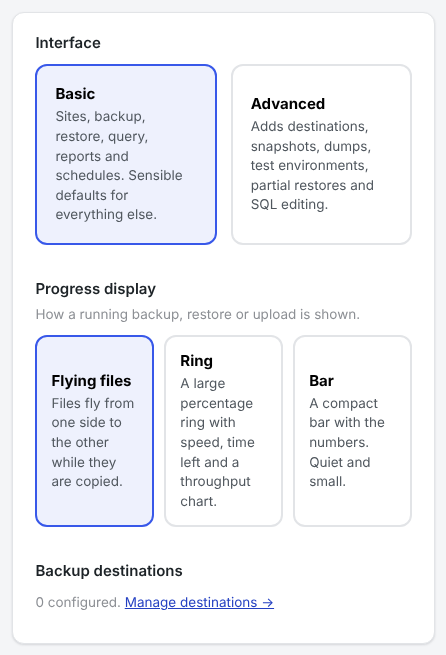
While files are copied you see them fly from one side to the other — from the site to the folder, the cloud, the zip file or the other site. If you prefer something calmer, choose Settings → Progress display in Rebound (Flying files, Ring or Bar) or Rebound → Settings → Progress display in WordPress (Flying files or Bar). With reduce motion switched on in your operating system nothing flies; you see the names and the bar.