 Rebound
 Rebound
Zip backups without Rebound
The Rebound plugin can back up a site to a zip file and restore a zip file on its own, without the Rebound program. Use it to keep a copy on your computer, or to move a site: make the zip on one site and restore it on another site with the Rebound plugin.
Applies to: Rebound plugin 2.0 · free, no license needed
To back up to a zip file
- In WordPress, choose Rebound → Backup.
- Under Back up to a zip file, choose What: Everything, Site content (no WordPress core), Database + media or Database only — or open a section and tick tables, plugins, themes and folders one by one.
- Optionally type a Label, for example Before theme update.
- Click Make the zip. The zip is built on the server in short steps while you watch the files fly into it.
- Click Download the zip and keep the file somewhere safe.
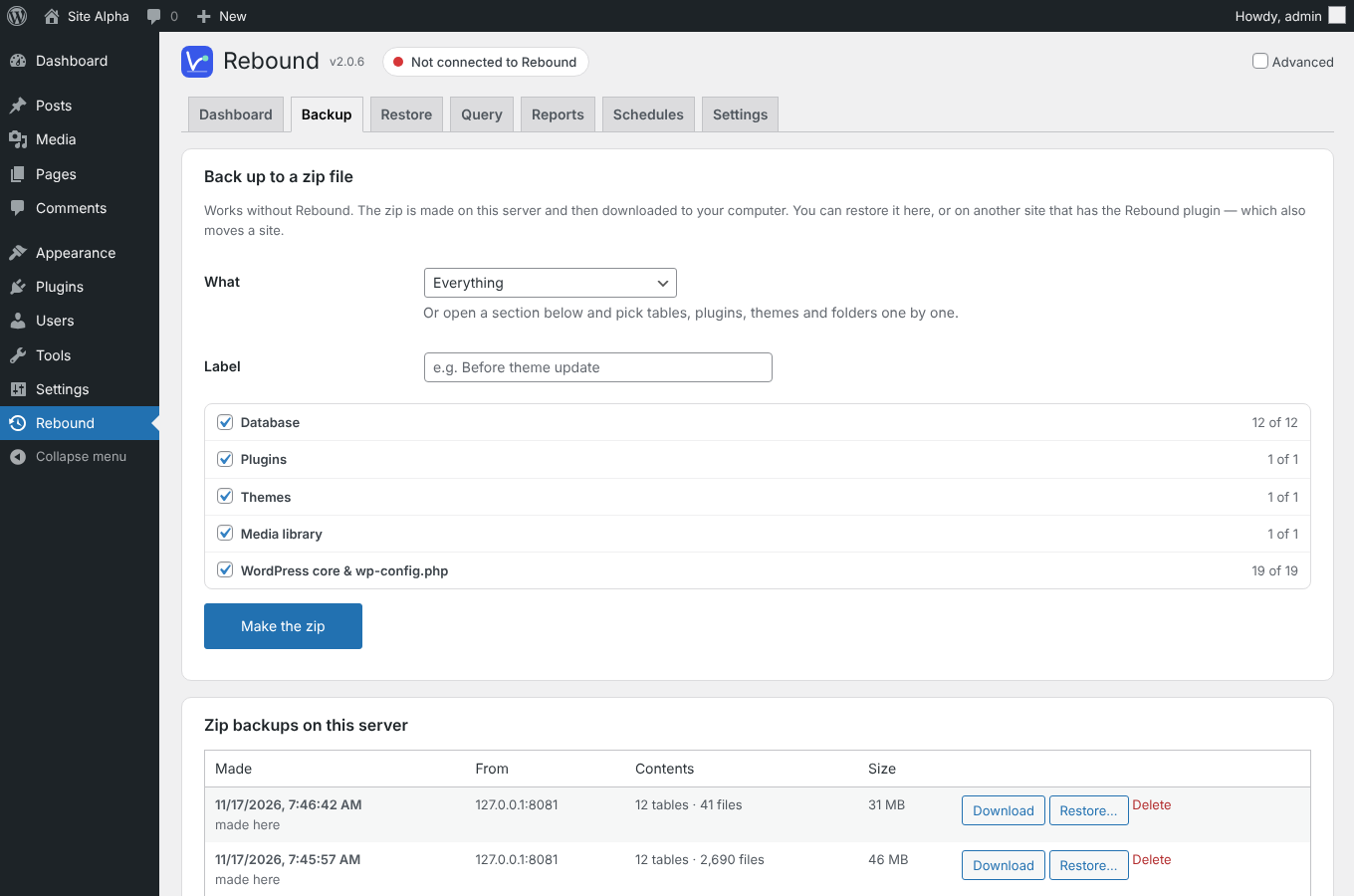
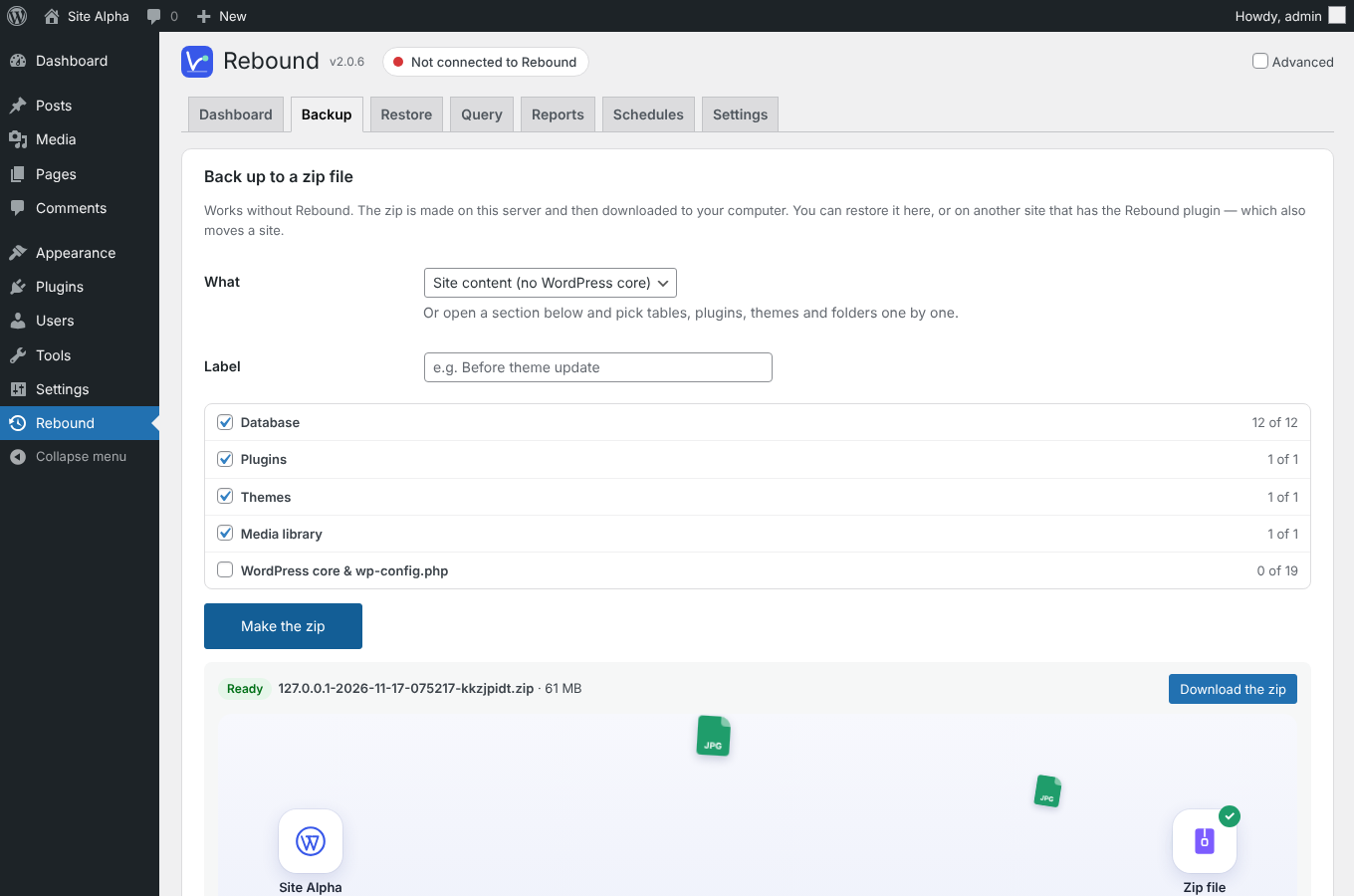
The zip stays on the server under Zip backups on this server until you delete it. A copy on the same server does not protect you against losing the server, so download it.
Note The zip is made in steps of about 12 seconds, so it works within the time limits of shared hosting. Large sites, more than 65,535 files and files over 4 GB are supported (ZIP64). It opens in Windows Explorer, macOS and 7-Zip.
To restore a zip file
- Choose Rebound → Restore.
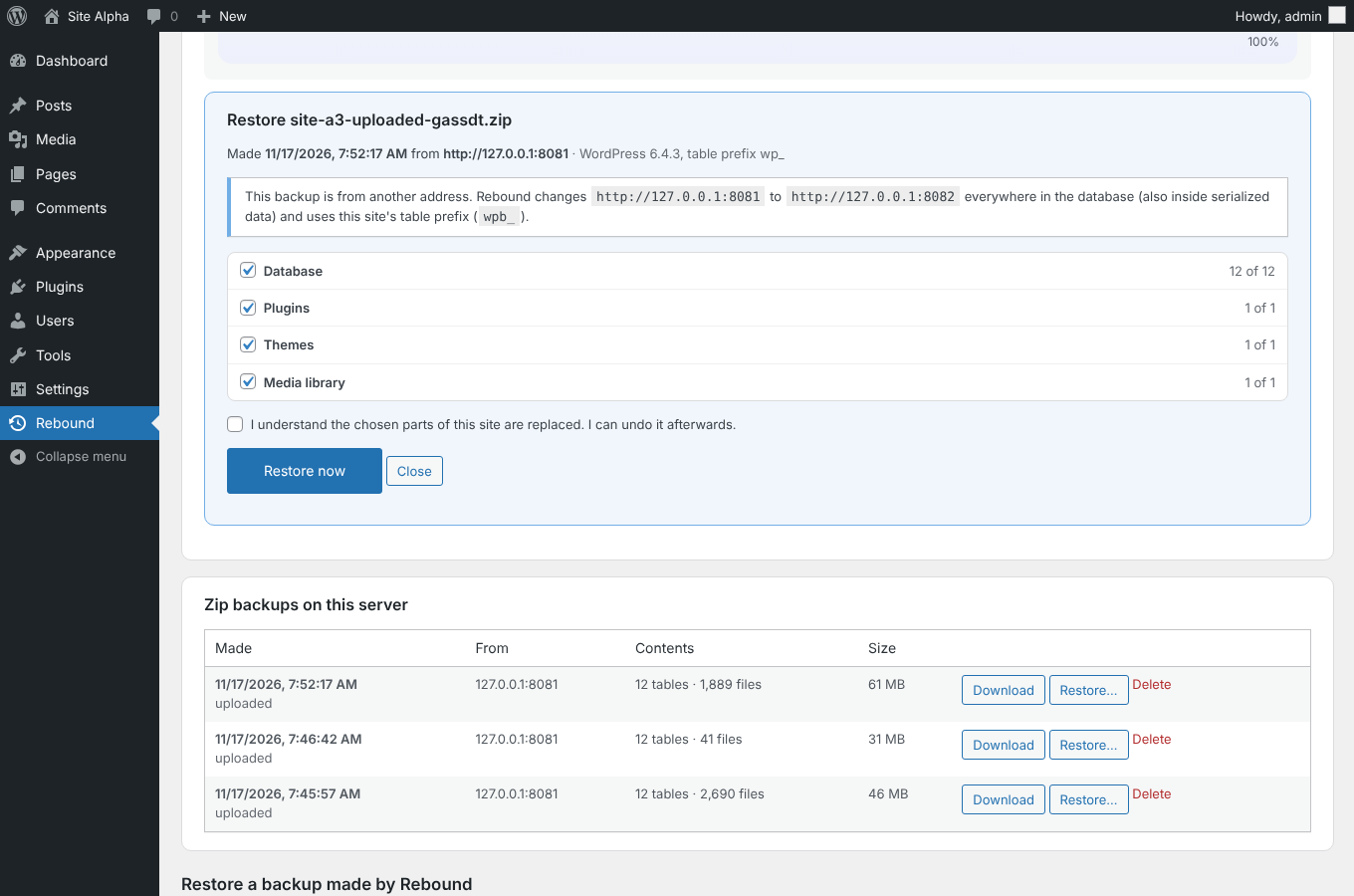
- Under Restore from a zip file, click Choose File and pick a zip made by the Rebound plugin — from this site or another one. It is uploaded in pieces, so the upload limit of the server does not matter. A zip that is still on the server: click Restore… next to it.
- Rebound shows what the zip contains and where it comes from. Untick what you do not want back: tables, single plugins or themes, the media library or other folders. WordPress core files are off by default.
- Tick the confirmation and click Restore now.
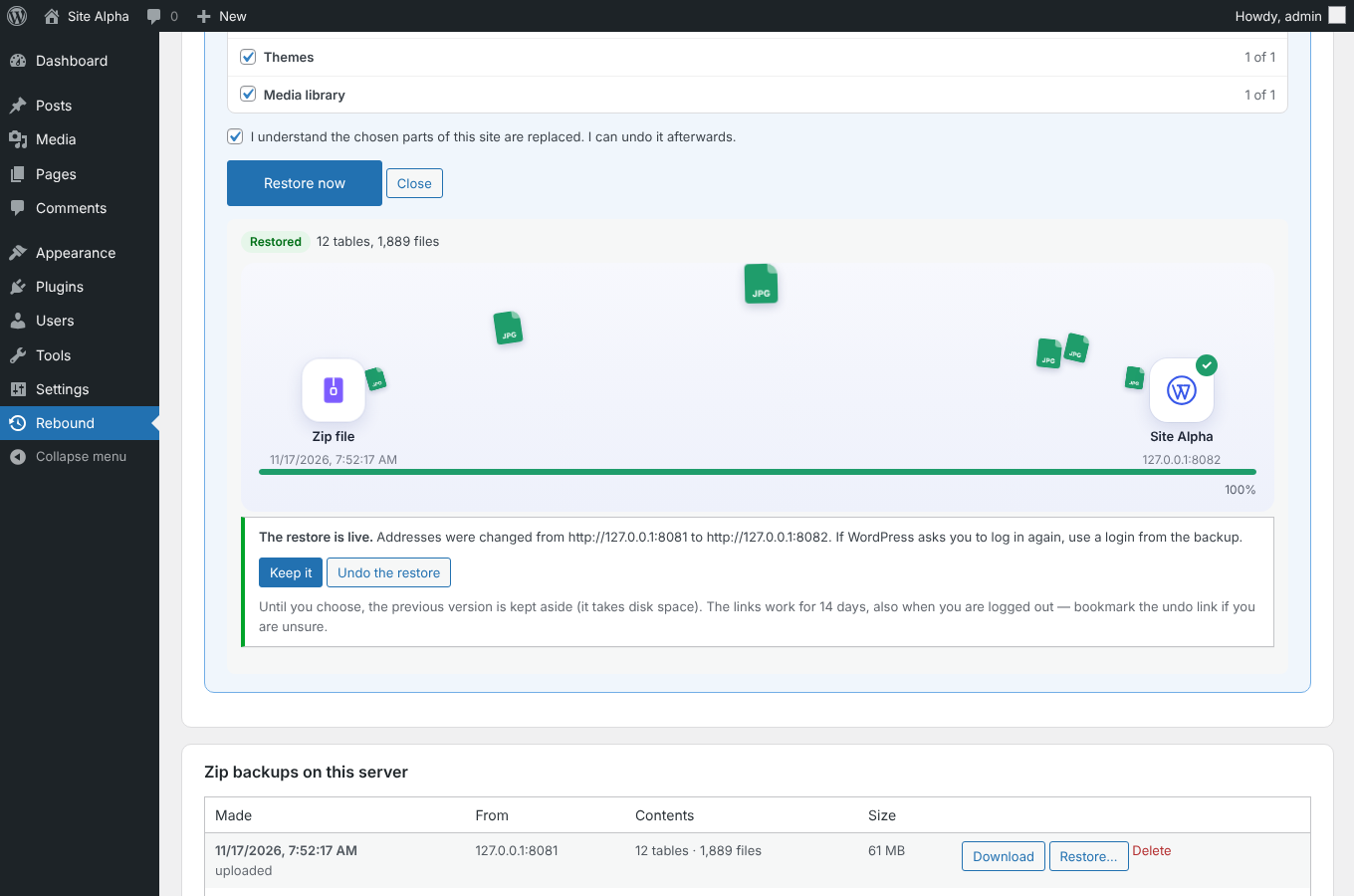
When the restore is done, click Keep it, or Undo the restore to put the site back exactly as it was.
Moving a site with a zip file
When the zip comes from another address, Rebound changes the old address to this site's address everywhere in the database — also inside serialized data — and uses this site's table prefix. wp-config.php is never restored, so the site keeps its own database settings.
Important Restoring the database replaces this site's users with the users from the zip. If WordPress asks you to log in again, use a login from the zip.
Keep it or undo
Until you choose, the previous tables and files are kept aside. The Keep it and Undo the restore links work for 14 days, also when WordPress has logged you out — bookmark the undo link if you are unsure. As long as a restore can still be undone, the Restore tab shows a reminder with both buttons.
Where the zip files are kept
Zips are kept in wp-content/rebound-backups. The folder is protected against direct downloads; only administrators can download a zip through the Rebound page. Zips are never part of another backup.